How to Make an SVG File

The finished result: How to Make an SVG File
  • Difficulty: Easy
  • About 20 minutes
  • 9 steps

You tapped Save

Save this project for later

We'll email you a link, no password.

How to Make an SVG File

  • Your saved projects in one list
  • Your ticked steps on any device

Check your inbox for an email from us. Not there? Look in your spam folder.

Print

Steps written out by Crafting Step by Step from Alisha Conn's video (opens YouTube) (7:40). Published .

An SVG is a picture saved as outlines instead of dots. A cutting machine reads those outlines as cut lines, which is why Cricut and Silhouette crafters want SVG files and why a plain JPEG cuts badly or not at all. You make an SVG by tracing a picture into outlines, and a free program called Inkscape does the tracing for you.

Alisha Conn shows the whole thing in her video in under eight minutes: open a black and white ice cream clip art in Inkscape, trace it, delete the original, save the result as an SVG, and load it into Cricut Design Space to prove it works. You need a computer, Inkscape (free for Windows, Mac and Linux) and a clean image.

Pick an Image That Traces Well

The trace follows the edge between dark and light, so the best images are bold black lines on white with no shading. Line-art clip art, simple silhouettes and your own marker drawings scanned or photographed flat all trace cleanly. Photos, soft watercolor and anything with gradients turn into blotches.

Check what you are allowed to do with the art. Clip art you buy usually comes with a license that says whether you can sell what you make from it. Tracing someone else's design does not make it yours, so trace your own drawings or art licensed for it.

Trace Bitmap Settings in Plain Words

Alisha uses an older Inkscape where you right-click the image and pick Trace Bitmap. In Inkscape 1.x it lives under Path, then Trace Bitmap (Shift+Alt+B). Choose Single scan and Brightness cutoff. The threshold decides what counts as dark: raise it to catch thin, light lines, lower it to drop specks and smudges. Click Update or turn on Live Preview to see the result before you apply it.

Want more than one color? Multiple scans with Colors makes one outline per color, stacked like a layered file. Start with single color until the basic trace makes sense.

Check the Trace Before You Save

The trace lands right on top of the original picture, and the two look the same. Drag the trace aside and delete the picture underneath, or Design Space will get both. Click the trace and read the status bar at the bottom: it should say Path, with a node count. If it says Image, you selected the original. Zoom in and delete any stray specks.

Inkscape SVG or Plain SVG?

Both open in Design Space. Inkscape SVG keeps extra Inkscape settings; Plain SVG leaves them out and is the safer choice for a file you will share or sell. Name it something you will recognize, and save it where you can find it, like the desktop.

Other Ways to Make an SVG

Design Space can turn a PNG into a cut image, but it cannot save an SVG file. Canva Pro can download a design as SVG, and online converters trace simple images too. Inkscape stays free and gives you the most control over the result.

Once the file is saved, the cut SVG files with Cricut tutorial picks up where this one ends: Attach, mats and the cut itself. New to the machine? Start with how to use a Cricut for beginners. A first traced design makes good homemade stickers.

From a shop we love: to compare your trace with a professionally built file, download HKC Market's free citrus cut file. It comes as SVG, PNG and DXF.

Free printable

Print the steps and supply list for this project

One page you can take to the table. Free with a free account, no password.

Get the free printable

What you'll need

Free, for this project

Get this checklist by email

  • All 5 tools and materials, with tick boxes
  • A link to print all 9 steps on paper, to keep by you while you craft

No password. The whole tutorial stays free on this page.

Quick answer

Make an SVG file from any clip art for free: trace it in Inkscape, delete the original, save it and load it into Cricut Design Space to cut. An easy project: about 20 minutes. You need 5 things, including computer with Inkscape, Cricut Design Space and Cricut cutting machine. The 9 steps start with open Your Clip Art Image in Inkscape and embed the JPEG When Inkscape Asks How to Import It.

Step-by-step guide

9 steps, about 8 minutes. Tap a picture to jump to that step. Your progress saves automatically.

Tick each step off as you go.

  1. Step 1: Open Your Clip Art Image in Inkscape

    Watch this step · 2:24

    Start Inkscape and use File, then Open, to find your picture. Alisha opens a black and white ice cream cone saved as a JPEG from a clip art set she bought. Any JPEG or PNG with bold dark lines on a white background works. Pick one with no shading, since the trace only sees dark and light.

    Tip:

    Keep your clip art in one folder. It makes this dialog much faster every time.

    Back to all steps

  2. Step 2: Embed the JPEG When Inkscape Asks How to Import It

    Watch this step · 2:38

    Inkscape pops up a small import box asking how to bring the picture in. Leave Embed selected and click OK. Embed tucks the picture inside the Inkscape file, so nothing breaks if the original moves. You will delete this picture after tracing anyway, so the other settings in the box do not matter.

    Tip:

    Tick Don't ask again if the box gets in your way. You can change it in Preferences.

    Back to all steps

  3. Step 3: Resize the Ice Cream Image to Fit Inside the Inkscape Page

    Watch this step · 3:10

    The picture often comes in bigger than the page. Hold Ctrl and drag a corner handle so it shrinks evenly, then drag the image inside the page outline. The page is not the cut size, so do not worry about exact measurements. You will size the design in Design Space before you cut.

    Tip:

    Ctrl while dragging keeps the proportions locked, so the cone does not stretch.

    Back to all steps

  4. Step 4: Right-Click the Image and Choose Trace Bitmap

    Watch this step · 3:27

    With the picture selected, right-click it and pick Trace Bitmap. This is the tool that turns dots into outlines. In Inkscape 1.x you will find it under the Path menu instead, or press Shift+Alt+B. A Trace Bitmap panel opens with a small preview of the result, and it stays open while you try different settings.

    Tip:

    Nothing happens to your picture until you click OK or Apply, so experiment freely.

    Back to all steps

  5. Step 5: Set Brightness Cutoff and Trace the Clip Art Into Paths

    Watch this step · 3:44

    Choose Brightness cutoff. Alisha unchecks Smooth and Stack scans, then clicks OK. Watch the preview: thin lines that vanish need a higher threshold, and black specks in the white need a lower one. Click OK when the preview looks like your picture with crisp, unbroken edges all the way round the cone.

    Tip:

    The default threshold of 0.45 is a good start for most black line art.

    Back to all steps

  6. Step 6: Move the Traced Cone Aside and Delete the Original Picture

    Watch this step · 4:01

    The trace sits exactly on top of the picture, so it looks as if nothing changed. Drag the top copy to one side and you will see two cones. Click the original picture, the one on the bottom, and press Delete. Then drag the traced cone back onto the page.

    Tip:

    Click the cone and check the status bar says Path. That is the vector you want.

    Back to all steps

  7. Step 7: Save the Traced Design as an SVG File

    Watch this step · 4:32

    Go to File, then Save As. Give the file a name you will recognize, choose the desktop or a cut files folder, and leave the type set to Inkscape SVG or pick Plain SVG. Click Save. That file is your finished SVG, ready for Cricut, Silhouette Designer Edition or any cutting program that reads SVG.

    Tip:

    Plain SVG drops Inkscape's extra settings and is the better pick for files you share.

    Back to all steps

  8. Step 8: Upload the New SVG File to Cricut Design Space

    Watch this step · 5:50

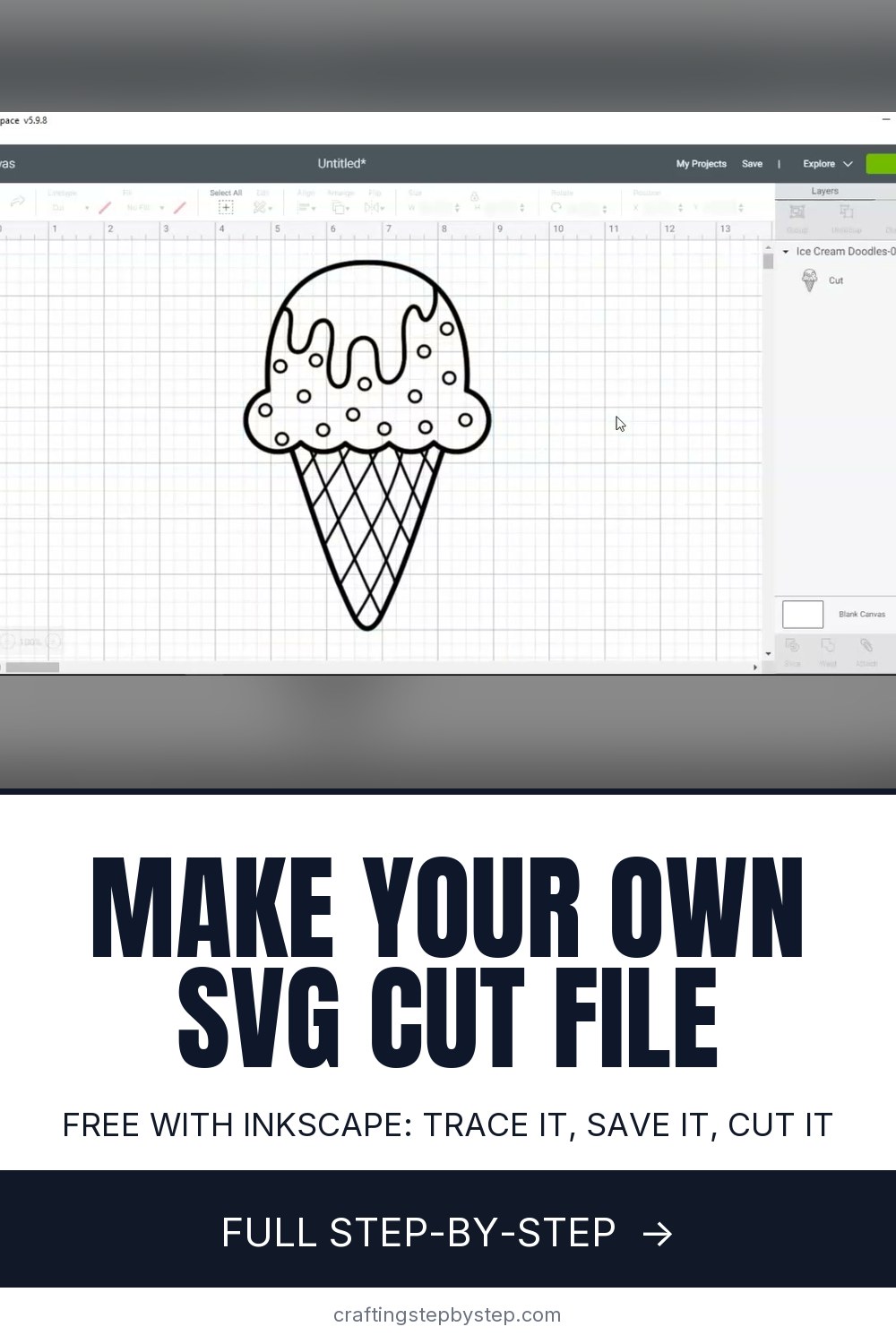
    Open Design Space, click Upload, then Upload Image and Browse. Pick the SVG you saved. The preview shows the cone on a checkerboard, which means the background is already gone. Give it a name and click Save. Because it is an SVG, Design Space skips the cleanup steps a JPEG would need.

    Tip:

    If the upload shows a solid block, you picked the original JPEG, not the SVG.

    Back to all steps

  9. Step 9: Insert the SVG Cone on the Canvas and Size It

    Watch this step · 6:24

    Select the upload and add it to the canvas. Newer Design Space calls the button Add to Canvas. The cone arrives as a single cut layer you can resize, recolor or add text to. Set the width you want, then cut it from vinyl or cardstock the same way as any store-bought SVG.

    Tip:

    Cut a small test first. Fine traced lines can be too thin to weed at tiny sizes.

    Back to all steps

How to Make an Egg Carton Butterfly Suncatcher

Keep going

How to Make an Egg Carton Butterfly Suncatcher

Keep going with crafts

More on this topic, picked for this svg file.

You reached the last step

Save this project to come back to it

Your ticked steps, the free printable and your other saved makes, together in My Projects. Free, no password.

You tapped Save

Save this project for later

We'll email you a link, no password.

How to Make an SVG File

  • Your saved projects in one list
  • Your ticked steps on any device

Check your inbox for an email from us. Not there? Look in your spam folder.

Free printable

Printable sheet for this project

The bonus is hidden until you sign up.

Free with a free account, no password. Every step above stays open to everyone.

Common problems

Why does my traced SVG cut as one solid blob?

The original picture is still underneath, or the trace filled in the shapes. Delete the original before you save, and check the status bar says Path. If inner shapes filled in, lower the brightness threshold and trace again.

Why are thin lines missing after the trace?

The threshold is too low for light or thin lines. Raise the brightness cutoff a little and update the preview until every line shows. Very thin lines can also be too fine to cut, so thicken them in the original drawing.

Can I use an Inkscape SVG in Cricut Design Space?

Yes. Inkscape SVG and Plain SVG both upload as cut images. Plain SVG leaves out Inkscape's extra settings, so it is the safer choice for files you share or sell.

Can I make an SVG in Cricut Design Space?

Design Space can turn a PNG or JPEG into a cut image for its own use, but it cannot save an SVG file. To get an SVG you can keep or share, trace the image in Inkscape or another vector program.

Can I sell SVG files I traced?

Only if you own the art or its license allows it. Tracing someone else's design does not make it yours. Trace your own drawings, or clip art whose license covers selling cut files.

Products Used

The Checklist

How to Make an SVG File

Tools
3
Materials
2
Steps
9
Video
8 min

Tools we recommend

As an Amazon Associate we earn from qualifying purchases. Links on this page may be affiliate links - clicking them and buying doesn't change your price, but helps support Crafting Step by Step.

Tags

The Crafter's Weekly

New crafts tutorials, every Sunday

One short email with the week's best step-by-step guides. Free, no spam, unsubscribe anytime.

Did this work for you?

What's next

Related collections

Curated theme pages that include this tutorial.

Similar tutorials

Hand-picked next reads based on the one you just finished.

Liked this crafts tutorial?

Pick the crafts you want to hear about. One email every Sunday with new step-by-step tutorials. No spam, easy to unsubscribe.

Get more like this in your inbox

Weekly digest. Pick the categories you want. Unsubscribe anytime.

Send me tutorials about

We only email about new tutorials. Easy unsubscribe anytime.