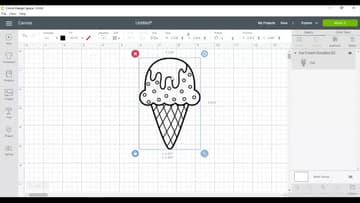
How to Make an SVG File
Source: Alisha Conn • Full tutorial: www.craftingstepbystep.com/crafts/how-to-make-an-svg-file
- Difficulty
- Easy
- Hands-on time
- About 20 minutes
- Makes
- 1 SVG cut file

Tools
- computer with Inkscape (free)
- Cricut Design Space
- Cricut cutting machine
Materials
- black and white clip art or your own drawing
- vinyl or cardstock for a test cut
Steps
1. Open Your Clip Art Image in Inkscape
Start Inkscape and use File, then Open, to find your picture. Alisha opens a black and white ice cream cone saved as a JPEG from a clip art set she bought.
Tip: Keep your clip art in one folder. It makes this dialog much faster every time.
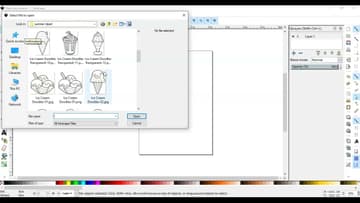
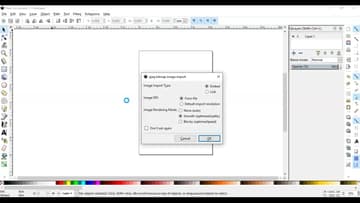
2. Embed the JPEG When Inkscape Asks How to Import It
Inkscape pops up a small import box asking how to bring the picture in. Leave Embed selected and click OK.
Tip: Tick Don't ask again if the box gets in your way. You can change it in Preferences.
3. Resize the Ice Cream Image to Fit Inside the Inkscape Page
The picture often comes in bigger than the page. Hold Ctrl and drag a corner handle so it shrinks evenly, then drag the image inside the page outline.
Tip: Ctrl while dragging keeps the proportions locked, so the cone does not stretch.

4. Right-Click the Image and Choose Trace Bitmap
With the picture selected, right-click it and pick Trace Bitmap. This is the tool that turns dots into outlines.
Tip: Nothing happens to your picture until you click OK or Apply, so experiment freely.
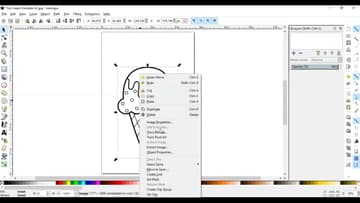
5. Set Brightness Cutoff and Trace the Clip Art Into Paths
Choose Brightness cutoff. Alisha unchecks Smooth and Stack scans, then clicks OK.
Tip: The default threshold of 0.45 is a good start for most black line art.
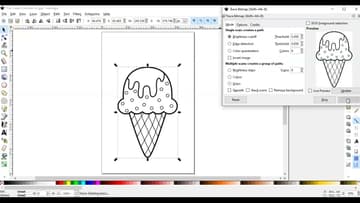
6. Move the Traced Cone Aside and Delete the Original Picture
The trace sits exactly on top of the picture, so it looks as if nothing changed. Drag the top copy to one side and you will see two cones.
Tip: Click the cone and check the status bar says Path. That is the vector you want.
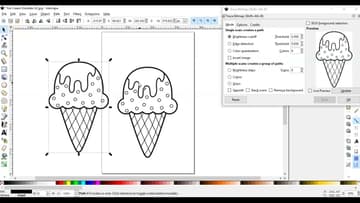
7. Save the Traced Design as an SVG File
Go to File, then Save As. Give the file a name you will recognize, choose the desktop or a cut files folder, and leave the type set to Inkscape SVG or pick Plain SVG.
Tip: Plain SVG drops Inkscape's extra settings and is the better pick for files you share.
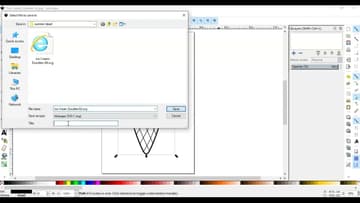
8. Upload the New SVG File to Cricut Design Space
Open Design Space, click Upload, then Upload Image and Browse. Pick the SVG you saved.
Tip: If the upload shows a solid block, you picked the original JPEG, not the SVG.
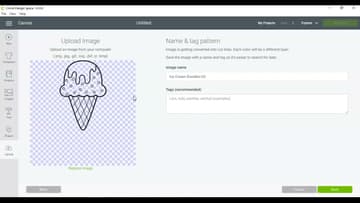
9. Insert the SVG Cone on the Canvas and Size It
Select the upload and add it to the canvas. Newer Design Space calls the button Add to Canvas.
Tip: Cut a small test first. Fine traced lines can be too thin to weed at tiny sizes.