How to Layer SVG Files in Cricut

The finished result: How to Layer SVG Files in Cricut
  • Difficulty: Medium
  • About 45 minutes
  • 10 steps

You tapped Save

Save this project for later

We'll email you a link, no password.

How to Layer SVG Files in Cricut

  • Your saved projects in one list
  • Your ticked steps on any device

Check your inbox for an email from us. Not there? Look in your spam folder.

Print

Steps written out by Crafting Step by Step from Alexis Rose Creates | Crafting, DIYs, + Design's video (opens YouTube) (6:44). Published .

A layered SVG is one design split into stacked pieces, one piece per color. Cut each color from its own sheet, stack them in order, and you get a multicolor decal or card topper that no single sheet could give you. Getting the layers to line up is the whole skill, and it is easier than it looks.

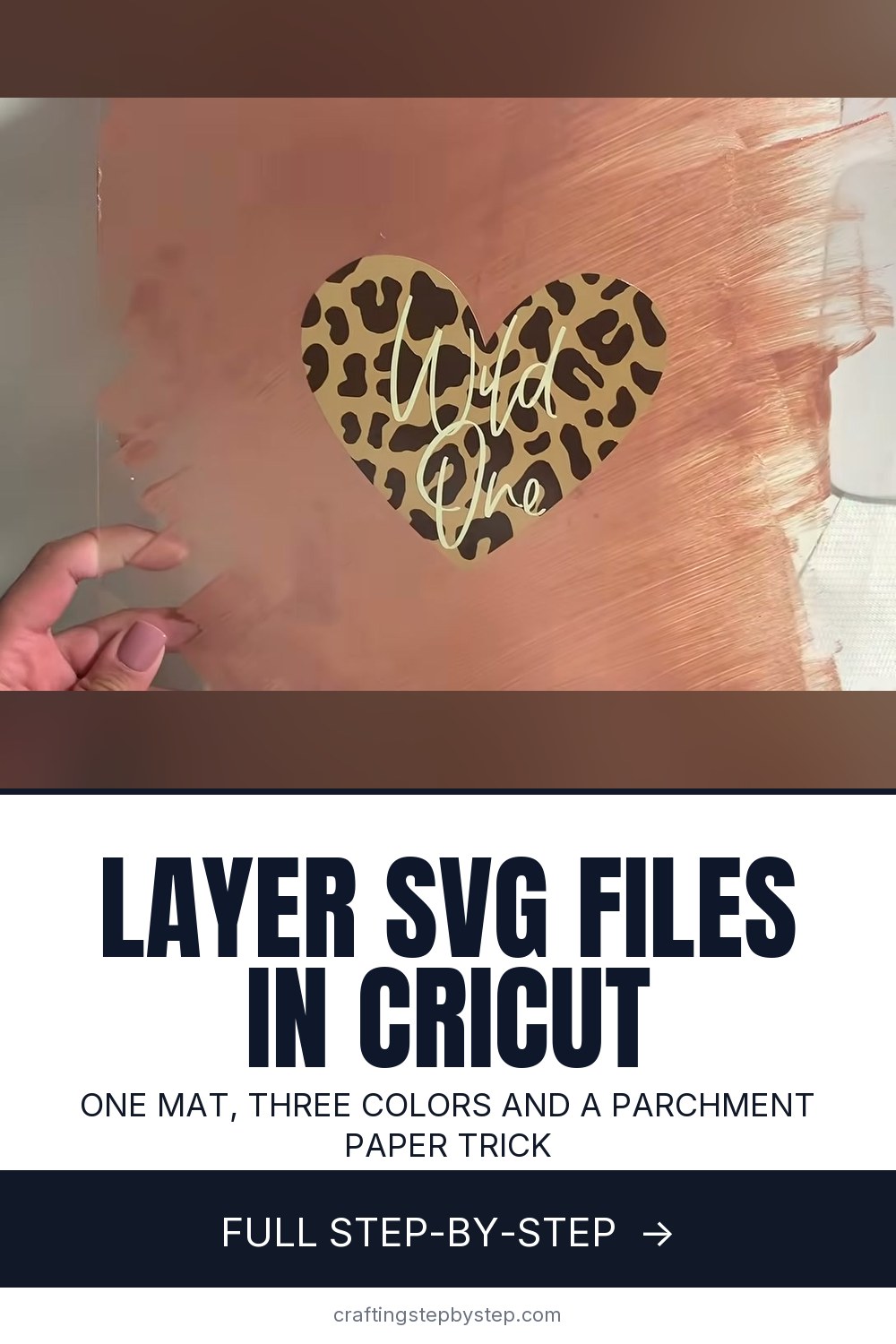
In her video, Alexis Rose of Alexis Rose Creates walks through a three-layer leopard print heart with "Wild One" lettering, from Design Space to a painted sign. Her trick is parchment paper, which vinyl will not stick to, so you can slide a layer into place before it grabs. This page starts with the file already uploaded. For the upload itself, see how to cut SVG files with Cricut.

How Design Space Reads a Layered SVG

Open the Layers panel and the design shows up as a group with one row per color. Design Space sends each color to its own mat when you click Make It, so a three-color file means three mats. Two handy controls: the eye icon hides a layer so you can see what is underneath, and the Color Sync tab merges near-identical shades so you cut fewer colors. Resize the whole group at once, never one layer, or the pieces stop fitting.

One Mat or Three

Three mats is the safe default. Alexis saves time by moving every color onto one mat with the three-dot menu on the Prepare screen, leaving a gap between pieces, and noting the grid squares each one sits on. You then lay small pieces of vinyl on exactly those squares. It saves vinyl and loading, but only works if every color is the same vinyl type, since one mat gets one cut setting.

Lining Up the Layers

Work from the biggest piece to the smallest. The base layer goes down first and every layer after it sits on top. Tape the base layer to the table so it cannot shift. Lay parchment paper over it, set the next layer on its transfer tape on the parchment, and nudge it until the edges match. Tape the top edge as a hinge, slide the parchment out, and press the layer down.

Well-made layered files give the base layer a slightly bigger outline than the layer above, so a hair of misalignment never shows a gap.

Layering Heat Transfer Vinyl

Iron-on vinyl stacks the same way, with heat between layers. Mirror every mat before you cut, press each layer only long enough for its clear carrier sheet to peel, then give the finished stack one last full press. Keep a cover sheet between the press and the vinyl so the lower layers do not melt.

Layered SVGs in Cardstock

The same files cut from cardstock make dimensional card fronts and shadow-box scenes. Cut each color, then glue the layers with a fine-tip glue pen, or use foam dots for depth. Line up the outer edges before the glue sets. For more card ideas, start with how to make a card, and if you are new to the machine, how to use a Cricut for beginners.

From a shop we love: to try layering in cardstock, HKC Market's layered Christmas tree cut file stacks in the same biggest-to-smallest order.

Free printable

Print the steps and supply list for this project

One page you can take to the table. Free with a free account, no password.

Get the free printable

What you'll need

Free, for this project

Get this checklist by email

  • All 10 tools and materials, with tick boxes
  • A link to print all 10 steps on paper, to keep by you while you craft

No password. The whole tutorial stays free on this page.

Quick answer

Cut a layered SVG in Cricut Design Space and stack the layers: one mat or three, weeding, and the parchment paper trick for lining up vinyl. A medium project: about 45 minutes. Materials cost about $5 to $15. You need 10 things, including layered SVG file, adhesive vinyl in three colors and transfer tape. The 10 steps start with check the Layers of the Leopard Heart SVG in Design Space and click Make It and See One Mat for Each Vinyl Color.

Step-by-step guide

10 steps, about 7 minutes. Tap a picture to jump to that step. Your progress saves automatically.

Tick each step off as you go.

  1. Step 1: Check the Layers of the Leopard Heart SVG in Design Space

    Watch this step · 0:40

    Upload the layered SVG and add it to the canvas. Alexis uses a heart with a tan base, brown leopard spots and cream "Wild One" lettering. Look at the Layers panel on the right: three rows, one per color. Each row is a separate piece of vinyl, and the panel order is the stacking order.

    Tip:

    Size the whole group before anything else. Alexis sets it to 5 inches wide.

    Back to all steps

  2. Step 2: Click Make It and See One Mat for Each Vinyl Color

    Watch this step · 1:16

    Click Make It. The Prepare screen lists one mat per color down the left side, three for this heart. You can cut them that way, loading a new sheet of vinyl for each mat. Alexis prefers to put all three on one mat to save time, which the next step covers.

    Tip:

    Design Space always makes one mat per color, grouped or not. More mats than you expected means near-identical shades: merge them in the Color Sync tab.

    Back to all steps

  3. Step 3: Move All Three Layers Onto One Cutting Mat

    Watch this step · 2:26

    On the second mat, click the three dots beside the leopard layer and choose Move Object, then send it to mat one. Do the same with the tan heart from mat three. Drag each piece to its own clear area and leave room between them. Note which grid squares each piece covers.

    Tip:

    Leave at least half an inch between pieces so a slightly crooked vinyl scrap still covers its cut.

    Back to all steps

  4. Step 4: Lay Each Vinyl Color on the Mat Where Its Layer Sits

    Watch this step · 3:04

    Cut a piece of each vinyl color a little bigger than its design. Using the grid on the mat, press each piece onto the squares where that layer sits on screen: cream for the lettering, brown for the spots, tan for the heart. Smooth them flat, load the mat and let the machine cut.

    Tip:

    Use the same vinyl type for every piece, since one mat gets one cut setting.

    Back to all steps

  5. Step 5: Weed Each Vinyl Layer With a Weeding Tool

    Watch this step · 3:40

    Peel the mat away from the vinyl, not the vinyl off the mat, so the vinyl stays flat. Then weed each layer: lift away everything that is not part of the design. The leopard spots take the longest because every spot is its own island. A small piece that lifts can be pressed back down with the tool.

    Tip:

    Bend the mat back gently. Bend it too hard and it can crease or snap.

    Back to all steps

  6. Step 6: Tape the Tan Heart Base Layer to the Table

    Watch this step · 4:06

    The tan heart is the base layer, the biggest piece that everything else sits on. Keep it on its backing and tape it to the table with painters tape so it cannot slide. Then tape a sheet of parchment paper over it. Vinyl will not stick to parchment, which is what makes the next step forgiving.

    Tip:

    Painters tape lifts off cleanly and will not tear the vinyl backing.

    Back to all steps

  7. Step 7: Line Up the Leopard Layer Over the Base on Parchment Paper

    Watch this step · 4:24

    Put transfer tape on the weeded leopard layer and peel off its backing. Lay it on the parchment over the tan heart and slide it around until the edges line up all the way round. Nothing sticks yet, so take your time. When it looks right, tape the top edge of the transfer tape to the table as a hinge.

    Tip:

    Look straight down, not at an angle, when you check the edges.

    Back to all steps

  8. Step 8: Pull Out the Parchment and Press the Leopard Layer Down

    Watch this step · 4:53

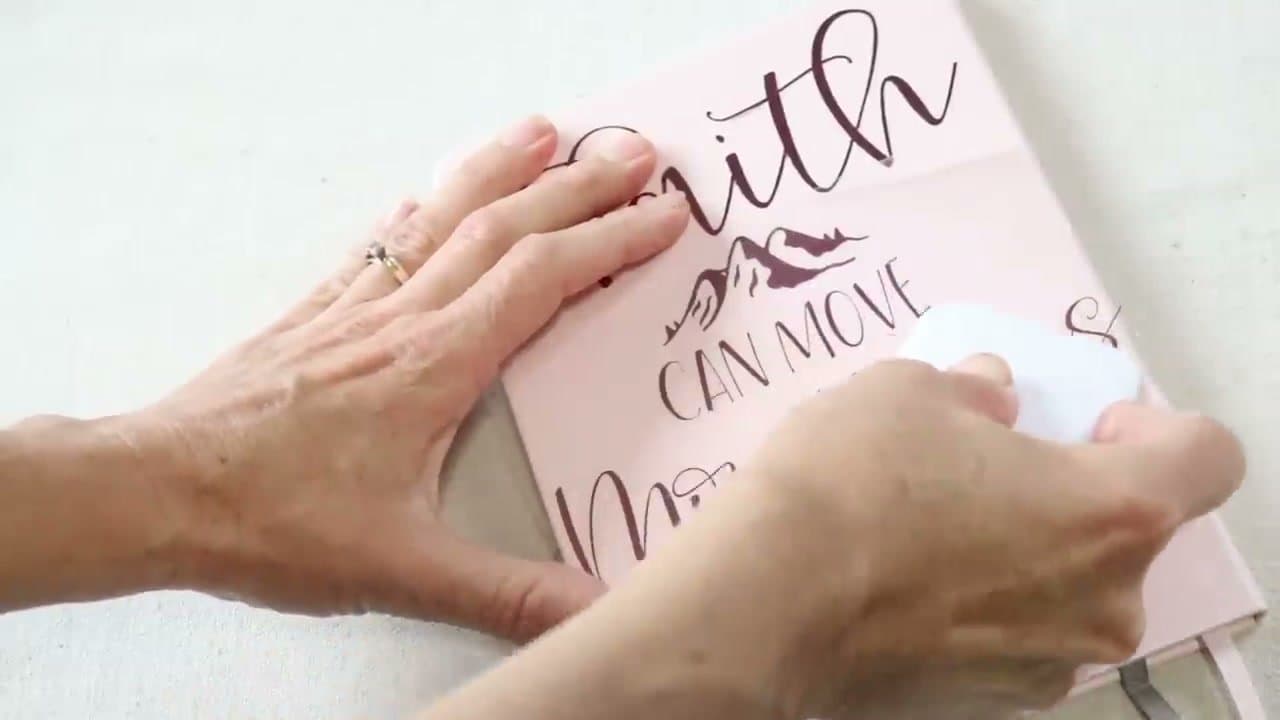
    Lift the leopard layer on its tape hinge, slide the parchment paper out, and lower the layer onto the tan heart. Because the hinge holds it in place, it lands exactly where you lined it up. Burnish it with a scraper, then peel the transfer tape away slowly. The two layers are now one piece.

    Tip:

    Peel transfer tape back low and flat against the design so small pieces stay down.

    Back to all steps

  9. Step 9: Apply the Layered Leopard Heart to the Painted Sign

    Watch this step · 5:24

    Pick the combined heart up with transfer tape and press it onto your surface. Alexis uses a painted acrylic sign, but a mug, tumbler or wood plaque works the same way. Scrape it down well and peel the tape back slowly. The bigger layered piece goes on first, and smaller details go on top.

    Tip:

    The same piece of transfer tape can be reused for the next layer.

    Back to all steps

  10. Step 10: Add the Wild One Lettering Layer on Top of the Heart

    Watch this step · 6:12

    The lettering is the last and easiest layer. Pick it up with transfer tape, line it up over the heart by eye, and press it down from the middle outward. Scrape it, peel the tape and the three-layer decal is done. Lettering on top hides small gaps in the layers underneath.

    Tip:

    Small top layers rarely need parchment. Save that trick for big layers that have to match.

    Back to all steps

How to Make Garden Plant Markers - 5 Cheap and Easy Ideas

Keep going

How to Make Garden Plant Markers - 5 Cheap and Easy Ideas

Keep going with crafts

More on this topic, picked for this project.

You reached the last step

Save this project to come back to it

Your ticked steps, the free printable and your other saved makes, together in My Projects. Free, no password.

You tapped Save

Save this project for later

We'll email you a link, no password.

How to Layer SVG Files in Cricut

  • Your saved projects in one list
  • Your ticked steps on any device

Check your inbox for an email from us. Not there? Look in your spam folder.

Free printable

Printable sheet and shopping list for this project

The bonus is hidden until you sign up.

Free with a free account, no password. Every step above stays open to everyone.

Common problems

Why don't my vinyl layers line up?

Usually the layers were resized separately, or the vinyl shifted. Resize the whole group together in Design Space, tape the base layer down, and use parchment paper so the next layer can slide into place before it sticks.

Why does Design Space make so many mats?

It cuts each color on its own mat. Use Color Sync to merge shades that should be one color, or move several layers onto one mat from the Prepare screen when they are the same vinyl type.

Which layer goes down first?

The biggest piece, usually the base or background color. Every smaller layer sits on top of it, and the smallest details, like lettering, go on last.

Can I layer heat transfer vinyl the same way?

Yes, with heat between layers. Mirror every mat, press each layer only long enough for its carrier sheet to peel, then give the finished stack a final full press. Keep a cover sheet between the press and the vinyl.

Why is there a gap around the edge of a layer?

The layers were cut exactly to size with no overlap, or one is slightly off. Better layered files make the base a little larger than the layer above. A slightly bigger base, or lettering on top, hides small gaps.

Products Used

The Checklist

How to Layer SVG Files in Cricut

Tools
6
Materials
4
Steps
10
Video
7 min

Tools we recommend

As an Amazon Associate we earn from qualifying purchases. Links on this page may be affiliate links - clicking them and buying doesn't change your price, but helps support Crafting Step by Step.

Tags

The Crafter's Weekly

New crafts tutorials, every Sunday

One short email with the week's best step-by-step guides. Free, no spam, unsubscribe anytime.

Did this work for you?

What's next

Related collections

Curated theme pages that include this tutorial.

Similar tutorials

Hand-picked next reads based on the one you just finished.

Liked this crafts tutorial?

Pick the crafts you want to hear about. One email every Sunday with new step-by-step tutorials. No spam, easy to unsubscribe.

Get more like this in your inbox

Weekly digest. Pick the categories you want. Unsubscribe anytime.

Send me tutorials about

We only email about new tutorials. Easy unsubscribe anytime.